Forms
Each field has its label written into the page code, where screen readers can announce it. A visitor should be able to fill in and send the form with the keyboard alone, from the first field to the button.


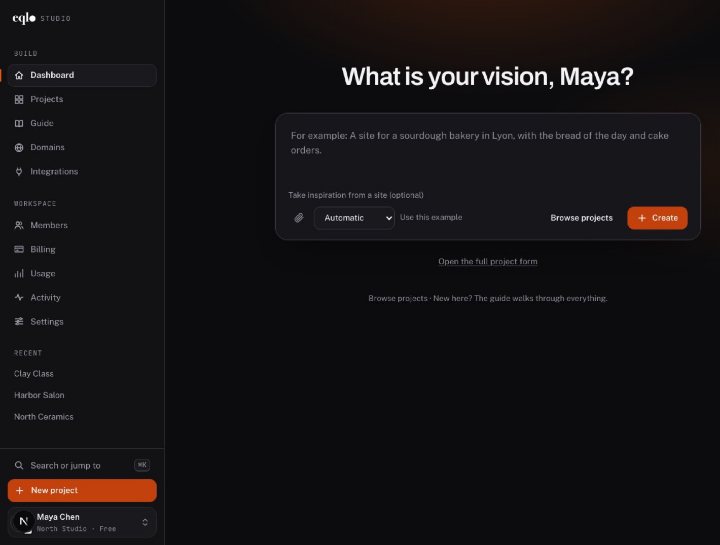
Create, edit and publish, then run your website and your app from their own dashboard. Every feature shown in real screenshots.
See the features
A Next.js project in React and TypeScript, sent to your GitHub repository. A spec change made in the repository comes back to Eqlo.
See the developer page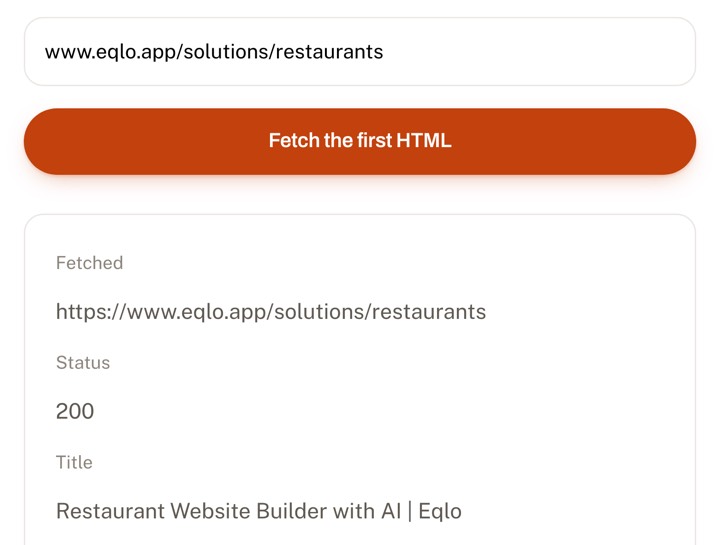
Paste a URL. In thirty seconds you see exactly what Google receives before any JavaScript runs.
Check a URLEqlo accessibility comes down to one practical test: can someone using a keyboard, a screen reader, or heavy zoom open the menu, read the page, and send the form? Eqlo sets those foundations in every published site, and this page is also clear about the parts that stay in your hands.
Every site Eqlo publishes opens with a "Skip to content" link and a mobile menu that works with a keyboard. Pages ship as complete HTML that reads without JavaScript, with a single main heading per page, and a publish attempt with more than one H1 is blocked until it is fixed.
Colours picked by the AI are adjusted automatically so text meets the AA contrast level. When visitors have set their phone or computer to reduce motion, Eqlo honours that setting and the animations stay still.
Each time the product changes, test sites must score at least 95 for accessibility in mobile Lighthouse. That score is not a full audit, but it keeps obvious regressions from reaching your visitors.
Page code is never written freehand by the AI. It describes the site as structured data, then a compiler builds every page from that data under fixed rules, so headings follow a logical order, form labels sit in the HTML, and each image gets a description written by the AI.
An image without a description blocks publishing, and so does a vague "Click here" link. Images are kept light in WebP format, which also helps people browsing on a slow connection or an older phone.
Each field has its label written into the page code, where screen readers can announce it. A visitor should be able to fill in and send the form with the keyboard alone, from the first field to the button.
The AI writes a description for every image, and you can edit it whenever it misses the point. A price, opening hours, or an address should never live only inside a picture, so write them in the text as well.
You can choose between four animation levels, from none to cinematic. Whichever level you pick, the effects stop for visitors whose device asks for less motion.

Your own copy, the photos you upload, and any colours you force stay your responsibility. If you insist on a low-contrast brand colour, check that buttons and links remain easy to read.
Test the published site with a keyboard, with browser zoom, and with a screen reader if you have one. Generation can get things wrong, so walk through the important paths before a customer pays on them.
Rebuilding an old site with Eqlo applies these rules to the new pages. If you already know about specific barriers, list them in your request so they are handled first.
When you report a fault, include the page address, your browser, and how you were navigating, whether by keyboard, screen reader, or zoom. A screenshot helps a lot, but never send a password.
Write to hello@eqlo.app with those details. Once the fault is fixed, the fix is dated on the changelog so you can check it.
A page that people can use is also a page that search engines read well, which makes SEO the other half of the same work.
Eqlo guarantees the foundations: complete HTML, one H1, contrast corrected to AA, image descriptions, and reduced motion on request. Your own copy, images, and forced colours can still cause problems, which is why testing the published site matters.
The new pages follow the rules described here. Content carried over from the old site, such as an image with text baked in, still needs checking, and you can ask for a fix in the chat.
No. Eqlo does not produce tagged PDFs. If you publish a PDF on your site, check its accessibility in the tool that created it.
Start free with five projects and no card. If a path fails, write to us and the fix will be dated.